
Deeplink Integration
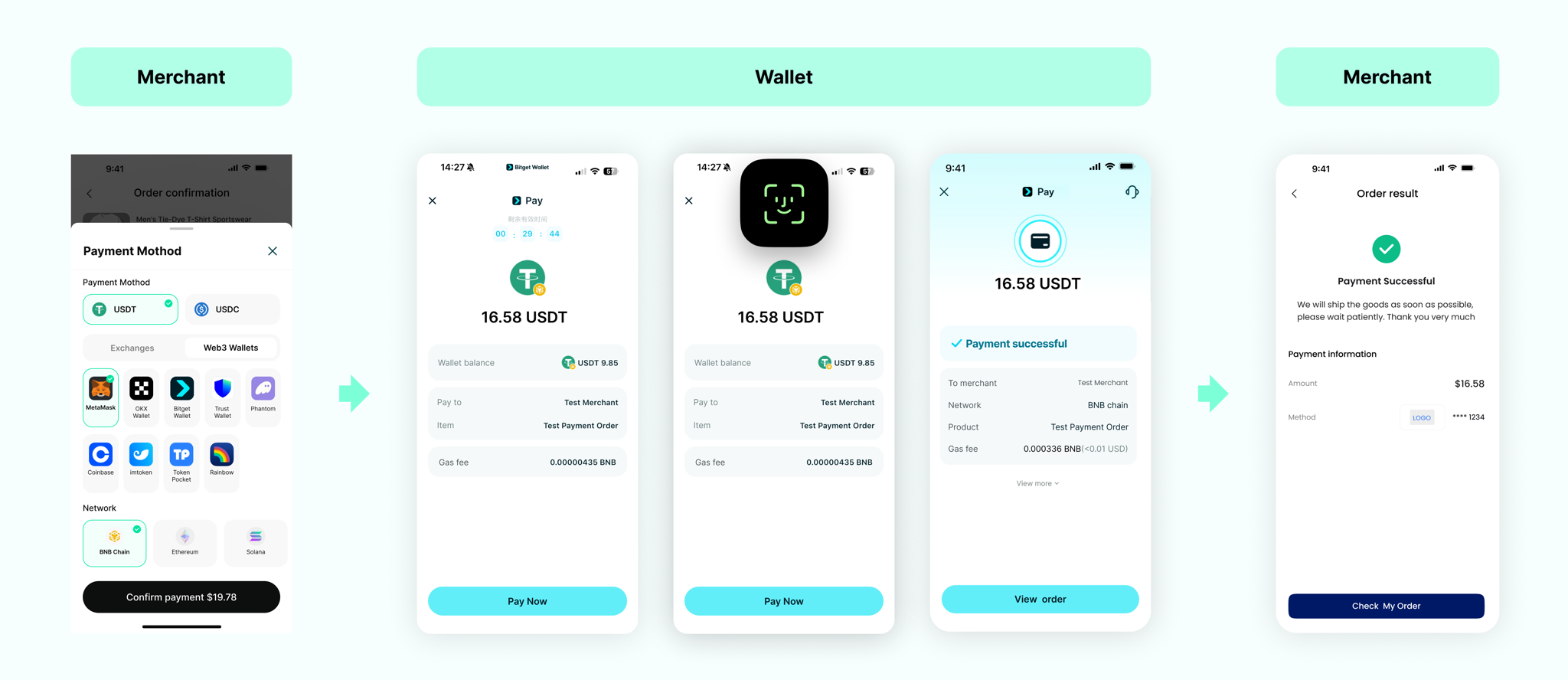
In Deeplink mode, the merchant renders its own wallet picker on the checkout page. When the user picks a wallet, the deeplink returned by createPayment launches that wallet directly, with no detour through the Paydify checkout page.
| Aspect | Notes |
|---|---|
| UX | Best — the user stays on the merchant's own checkout |
| Effort | Low (an extra UI step to render the wallet picker) |
| Platforms | WAP / App (mobile) |
This mode is best when you already have a polished checkout UI and want to keep the wallet selection inside your own brand instead of redirecting to a third-party page.
Interaction
On the merchant's own checkout page the buyer picks a wallet; the deeplink returned by createPayment launches that wallet directly to complete the payment.
Differences vs. CKP
Deeplink mode shares the same POST /payin/v1/createPayment endpoint as CKP. The only difference is on the client-side redirect:
| Stage | CKP | Deeplink |
|---|---|---|
| Create order | Server calls createPayment | Same as CKP |
| Wallet selection | Paydify checkout drives it | Merchant renders the picker itself |
| Client jump | Redirect to data.httplink (Paydify checkout) | Redirect to data.deeplink (wallet app) |
| Webhook / query / refund / settlement | Same as CKP | Same as CKP |
Steps 0 / 1 / 3 / 4 / 5 reuse the CKP integration guide. This page only covers the field constraints in step 1 and the client redirect in step 2 that are specific to Deeplink.
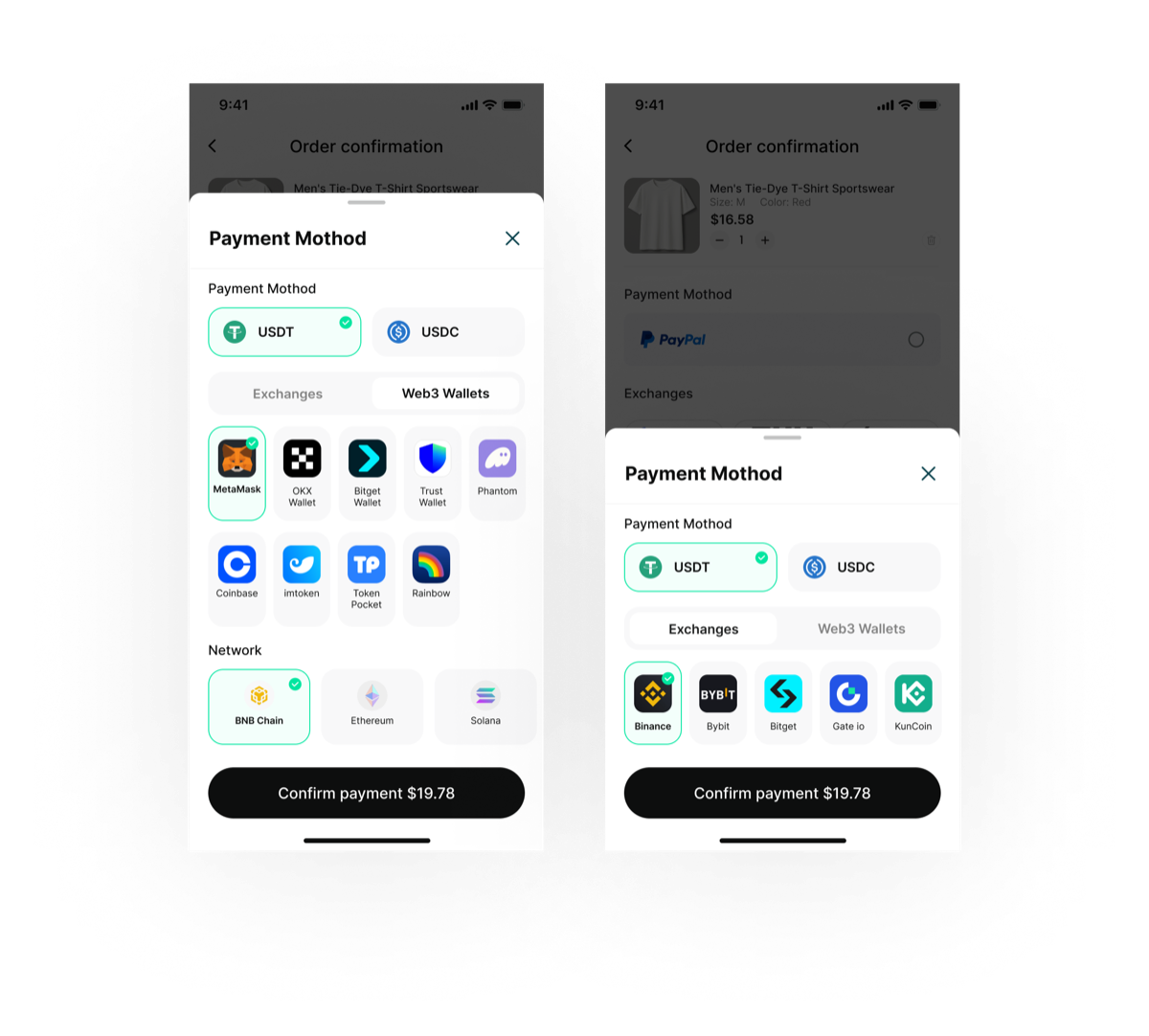
The merchant renders the wallet picker on its own order page (grouped by exchanges / Web3 wallets, filterable by chain); once selected, pass the wallet in payMethod1 when calling createPayment:
Prerequisites
- KYC completed with
x-api-key/x-api-secretin hand (available under merchant Portal - Developer Center); - Server-side SDK installed and initialized;
- A list of target wallets + chains confirmed — see Supported chains and currencies.
Integration steps
Sequence
Step 1 — Create order (wallet + chain required)
Call POST /payin/v1/createPayment. In Deeplink mode, you must specify the wallet and chain — Paydify needs both to build the right deeplink:
| Field | Required | Description |
|---|---|---|
payMethod1 | Yes (Deeplink only) | Wallet identifier, e.g. BINANCE / BITGET / OKX. See Supported chains and currencies |
payMethod2 | Yes (Deeplink only) | Chain, e.g. BNB / TRON / ETH / KAIA |
| Other fields | — | Identical to CKP — see CKP integration — Step 1 |
Request example:
{
  "mchTxnId": "MCH_TXN_20260610_002",
  "txnAmount": "0.01",
  "currency": "USDT",
  "checkoutMode": "MERCHANT",
  "payMethod1": "BINANCE",
  "payMethod2": "BNB",
  "notificationUrl": "https://your-domain.com/api/payment/notify",
  "successReturnUrl": "https://your-domain.com/pay/success",
  "failReturnUrl": "https://your-domain.com/pay/fail",
  "pendingReturnUrl": "https://your-domain.com/pay/pending",
  "txnTitle": "Test Payment Order",
  "source": "web",
  "txnDesc": "Payment for test product",
  "accountInfo": [
    {
      "toAddress": "0x1111111111222222222233333333334444444444",
      "network": "ETH"
    }
  ],
  "payerInfo": {
    "uid": "USER_123456"
  },
  "mchExtInfo": "{\"orderId\":\"ORD_2025081201\",\"productId\":\"PROD_001\"}"
}
Response example:
{
  "code": "SYS_SUCCESS",
  "message": null,
  "messageDetail": null,
  "data": {
    "txnId": "P5081643613805693698",
    "mchTxnId": "MCH_TXN_20260610_002",
    "httplink": "https://app.binance.com/payment/secpay?linkToken=xxxxxxxxxxxxxxxxxxxxxxxxxxxxxxxx&_dp=Ym5jOi8vYXBwLmJpbmFuY2UuY29tL3BheW1lbnQvc2VjcGF5P3RlbXBUb2tlbj14eHh4eHh4eHh4eHh4eHh4eHh4eHh4eHh4eHh4eHh4eCZyZXR1cm5MaW5rPWh0dHBzOi8veW91ci1kb21haW4uY29tL3BheS9zdWNjZXNz",
    "deeplink": "bnc://app.binance.com/payment/secpay?tempToken=xxxxxxxxxxxxxxxxxxxxxxxxxxxxxxxx&returnLink=https://your-domain.com/pay/success",
    "qrCode": "data:image/png;base64,iVBORw0...",
    "state": "INIT",
    "errorMsg": ""
  },
  "success": true
}
In Deeplink mode you mainly consume data.deeplink.
Step 2 — Launch the wallet on the client
After the user picks a wallet, drive the redirect with data.deeplink:
<a href="{{deeplink}}" target="_self">Pay with Binance Pay</a>
window.location.href = data.deeplink;
Key constraints:
- The deeplink must be triggered from a user-initiated event (e.g. click); otherwise some browsers will block it;
- If the target wallet is not installed, the redirect silently fails. Add a client-side timeout (e.g. 3 seconds of "still on page" = failure) and a fallback path (e.g. switch to the CKP
httplink); - iOS Safari and various WebViews handle Universal Links / Custom Schemes differently — follow the target wallet's official guidance.
Returning to your page after payment
Some wallet apps do not auto-redirect back to your page — this is the main UX gap vs. CKP. Recommended pattern:
- Show a "complete the payment in your wallet, then come back here" notice after the jump;
- Simultaneously poll
getPaymentStatusor listen for the webhook to refresh the page in place; - When the user returns manually, branch into the success / failure page based on the queried state.
Reuse from CKP
- Step 0 — Sign / verify — identical, see CKP integration — Step 0;
- Step 3 — Result acquisition — same belt-and-braces (webhook + active query), see CKP integration — Step 3 and Webhook;
- Step 4 — Refund — identical, see Create refund;
- Step 5 — Settlement files — identical, see Get settlement files.
Extra go-live checklist
[ ] Wallet picker on the checkout page reflects the wallets your x-api-key is enabled for
[ ] Fallback path implemented for users who don't have the wallet app installed (e.g. switch to CKP)
[ ] Payment-completion is detected via getPaymentStatus polling or webhook (not relying on app-return)
[ ] Pre-jump prompt instructs the user to return to your page after paying
[ ] Sandbox device test of at least one wallet deeplink launch is green